

The Best Email Hosting for Small Business Isn’t What You Think (2025 Guide)
October 21, 2025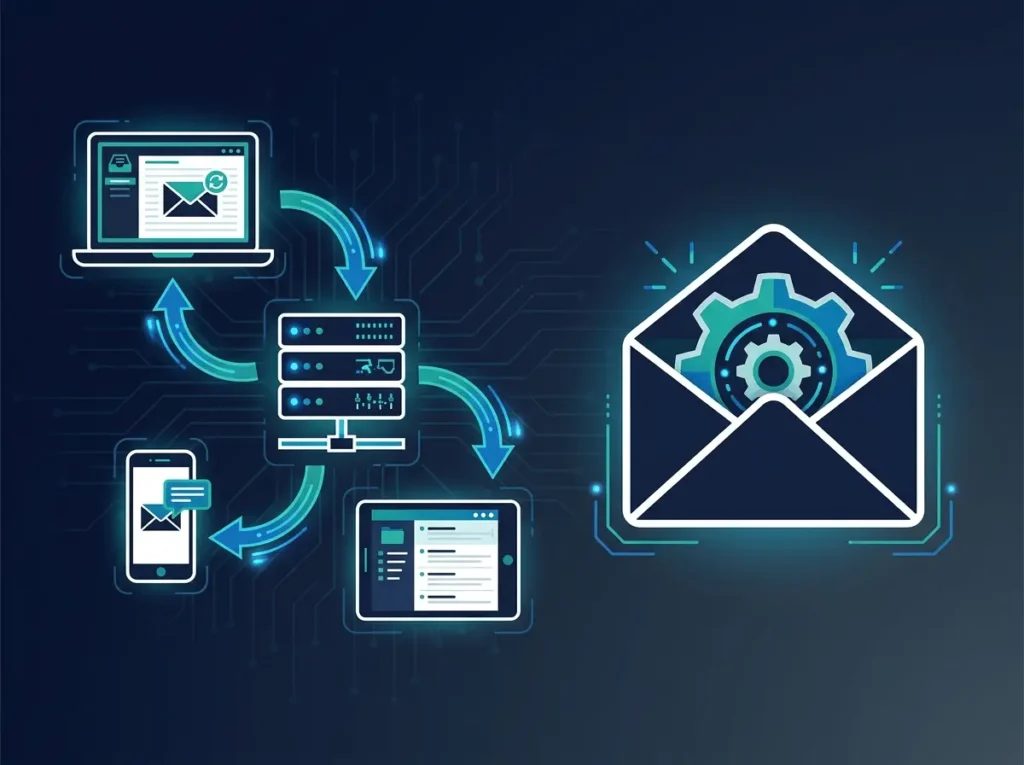
If you run a business, your email is the backbone of your daily operations. But knowing how to configure that email properly across different devices and platforms is what separates a setup that works from one that causes constant frustration. This is where IMAP business email setup becomes essential — it is the standard protocol that keeps your inbox synchronized across all your devices, whether you are at your desk, on your phone, or traveling with a laptop.
IMAP (Internet Message Access Protocol) stores your emails on the server and syncs them to every device you connect. When you read a message on your phone, it appears as read on your desktop. When you send a reply from your laptop, it shows in your sent folder on your tablet. Without IMAP, you would be managing multiple disconnected inboxes — a nightmare for any business professional.
IMAP vs POP3: Why IMAP Wins for Business
Before diving into configuration steps, it helps to understand why IMAP is the right choice for business email. POP3 (Post Office Protocol 3) downloads emails to a single device and deletes them from the server. It was designed for a world where you had one computer and limited storage. IMAP was designed for the modern multi-device workplace.
| Feature | IMAP | POP3 |
|---|---|---|
| Email Storage | On server (accessible everywhere) | On one device only |
| Multi-Device Sync | ✅ Yes — all devices stay in sync | ❌ No — each device is independent |
| Sent Items Sync | ✅ Synced across all devices | ❌ Only on sending device |
| Server Folders | ✅ Full folder structure synced | ❌ Local folders only |
| Offline Access | ✅ Cached copies available | ✅ Full messages downloaded |
| Storage Usage | Uses server storage (plan dependent) | Uses device storage |
| Best For | Business professionals, teams | Single-device users, limited storage |
Bottom line: Every business should use IMAP. POP3 is a legacy protocol that causes more problems than it solves in a modern workplace.
What You Need Before Configuring IMAP for Business Email
Before you start your imap business email setup, gather the following information from your email provider or IT administrator. Having these details ready makes the entire process take under five minutes.
- Your full email address — e.g., you@yourcompany.com
- Your email password — the password for that mailbox
- Incoming mail server (IMAP) — typically something like
mail.yourdomain.comoroutlook.office365.com - Outgoing mail server (SMTP) — usually the same server address as incoming
- Port numbers — IMAP: 993 (SSL) or 143 (STARTTLS), SMTP: 465 (SSL) or 587 (STARTTLS)
- Authentication requirements — most providers require the full email address as username
If you are using a provider like Microsoft 365 Business Email, the server settings are automatically configured when you add your account to Outlook — you may not need to enter any of these manually. For other clients, the settings are provided in your admin dashboard.
Step-by-Step IMAP Business Email Setup
These steps work for virtually any business email provider. The interface may look slightly different on each platform, but the fields are the same.
In Outlook, go to File → Account Settings → Add Account. In Apple Mail, go to Mail → Add Account → Other Mail Account. In the Gmail app, tap your profile picture → Add another account → Other. Each client has an option to add a manual account.
Enter your full name as you want it to appear on outgoing messages, and your full business email address. For most providers, this is the same as your mailbox address (e.g., jane@yourcompany.com).
When prompted to choose an account type, select IMAP. Some clients default to POP3 — make sure you change this. For modern providers like Microsoft 365, the client may auto-detect the correct protocol and configure everything automatically.
Enter the IMAP server address for incoming mail and the SMTP server for outgoing mail. Use the secure port numbers: 993 for IMAP with SSL, and 587 for SMTP with STARTTLS. Check the box that says “Use SSL” or “Use secure connection” for both incoming and outgoing servers.
Enter your full email address as the username and your mailbox password. The client will verify the settings with the server. If successful, you will see a confirmation message. If not, double-check the server addresses and port numbers — a single typo will prevent the connection.
Send a test email from your configured client to another address you can check. Verify that the message arrives, that replies sync across devices, and that folders like Sent and Drafts appear correctly. If you previously configured basic email on your domain, our complete guide to setting up professional email walks through the entire process from domain registration to first message.
Common IMAP Settings for Major Business Email Providers
If your provider uses standard settings, here are the IMAP configurations for the most common platforms. For organizations managing multiple users, you may want to review a broader corporate email planning framework that covers migration and security at scale.
| Provider | IMAP Server | IMAP Port | SMTP Server | SMTP Port |
|---|---|---|---|---|
| Microsoft 365 (via bbccloud.com) | outlook.office365.com | 993 (SSL) | smtp.office365.com | 587 (STARTTLS) |
| Google Workspace | imap.gmail.com | 993 (SSL) | smtp.gmail.com | 465 (SSL) |
| Zoho Mail | imap.zoho.com | 993 (SSL) | smtp.zoho.com | 587 (STARTTLS) |
Troubleshooting Common IMAP Issues
Even with the correct settings, you may encounter issues during your imap business email setup. Here are the most common problems and their solutions:
- Authentication failed — Ensure you are using your full email address (including @domain.com) as the username. Some providers require an app password instead of your regular password if you have two-factor authentication enabled.
- Connection timed out — Check that the server address is correct and that your network allows outbound connections on ports 993 and 587. Corporate firewalls sometimes block these ports. Try switching to port 143 (IMAP) or 25 (SMTP) as a fallback, though these are less secure.
- Emails not syncing — Verify your sync settings in the client. Most clients have a “Push” or “Fetch” option. Push delivers emails instantly; Fetch checks on a schedule. For business use, Push is strongly recommended.
- Sent emails not appearing in Sent folder — This usually means the SMTP server requires authentication. Go back to your account settings and make sure “Require authentication for SMTP” is checked, using the same credentials as your incoming server.
Frequently Asked Questions About IMAP Business Email Setup
Get Your Business Email Configured Correctly
Proper imap business email setup ensures that your team can access their email from any device without missing a message. It is a one-time configuration that eliminates the daily frustration of out-of-sync inboxes and lost messages. Whether you are configuring a single mailbox or rolling out email to an entire organization, IMAP gives you the flexibility and reliability that modern business demands.
For a reliable business email platform with automatic IMAP and Exchange configuration, Microsoft 365 Business Email provides pre-configured server settings that work with Outlook, Apple Mail, and any IMAP-compatible client — starting at $4.99 per mailbox per month.
About the Author — URL Email Editorial Team specializes in business email hosting, domain registration, and email configuration guides for the US market. Our content is based on real-world technical implementation experience.


